How to send a manual transmission from your heart device
Most transmissions send automatically, on the schedule your care team set up. Use the steps below for the times your clinic asks you to send one yourself, or you just want to check that everything’s connected.
If you’re having chest pain, trouble breathing, or think you’re having a medical emergency, call 911 right away. Don’t wait to send a transmission first — your device will still record what it needs to.
What’s a manual transmission, and when do you need to send one?
Your heart device already sends most of its information to us on its own. A manual transmission is simply you triggering an extra send — usually because your clinic asked for one, you’re experiencing symptoms, or you want to confirm your monitor is connecting properly.
Find your device below
Choose your device manufacturer, then find the exact monitor or app you use at home.
Follow the steps
Each device walks you through what to press, what lights or icons to watch for, and how long it takes.
Confirm it sent
Look for the success signal listed for your device — a checkmark, star icon, or “data sent” message.
Find your device
Select the company that makes your heart device, then find your specific monitor or app in the list below.
Not sure who makes your device? Check the label on your home monitor, or the app icon on your phone — it usually shows the manufacturer’s name.
Aveir leadless pacemakerMerlin@home transmitter, on-demand transmission
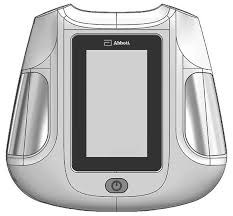
- Get ready. Make sure the transmitter has its batteries in and is powered on. Wet a cloth so you can dampen your hands and thigh for the transmission.
- Wake up the transmitter. Press the power button on the transmitter.
- Start a transmission. Tap “Start” to begin a new remote transmission. Choose “Hand-held” if you’re holding the device. Choose “Wires” only if your physician told you to use electrode pads.
- Position yourself. Sit down, rest the transmitter on your thigh, and place your hands on the metal plates. Make sure your hands and thigh are damp, make good contact with the plates, and try to stay still. Collecting your data takes about 2 to 3 minutes.
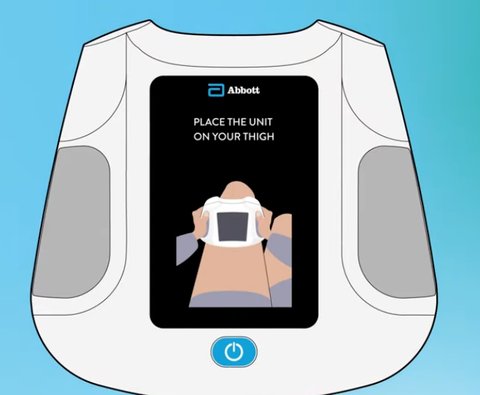

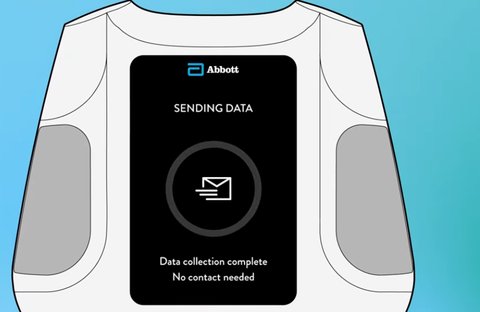
- Wait for confirmation. The screen shows when data collection reaches 100%. Once it says “Sending data,” you can let go of the transmitter. It sends your data to us on its own.
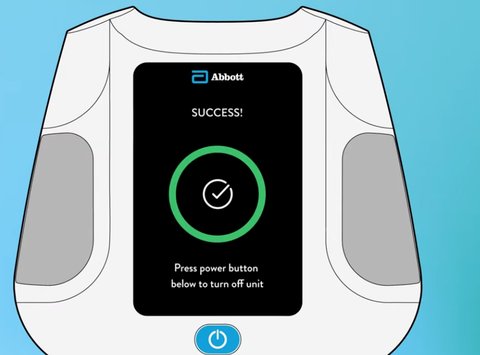
- Look for success. The whole process can take 5 to 15 minutes. A green ring and the word “Success” mean your transmission went through. You can then press the power button to turn the transmitter off.
Merlin@home transmitterModel EX1100
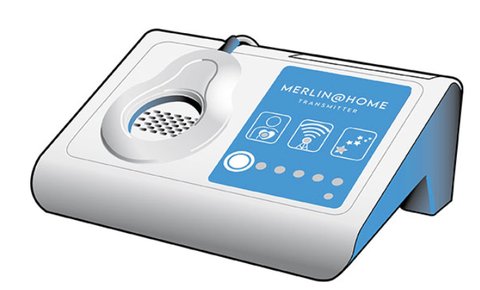
- Place the wand, green side facing you, over your implant.
- Quickly press and release the start button on the monitor — it will beep.
- Quickly press and release the start button again — it will beep once more.
- The “read” icon (a person with a heart) lights up: the transmitter is now reading your implant.
- When the tower icon lights up, you can remove the wand — the transmitter is sending your information. This can take a while, so don’t use a landline phone while the tower icon is lit.
- When the star icon lights up, your transmission sent successfully. It stays lit for about a minute.
Merlin@home transmitterModel EX1150
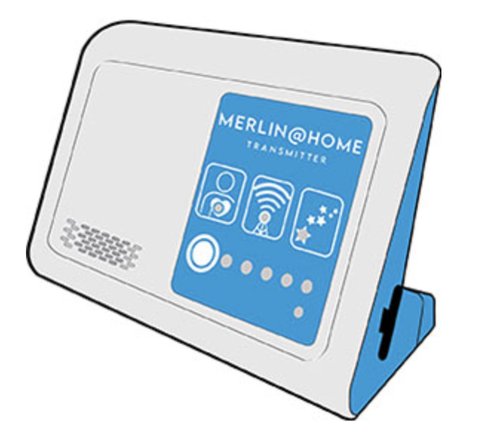
- Press the start button once — the stars icon lights up.
- Stay in front of the transmitter.
- Press and hold the start button for 1 second, until you hear a beep.
- The “read” icon lights up while the transmitter reads your implant.
- The tower icon lights up while it sends your information. This can take a while, and you don’t need to stay in front of the transmitter while it does.
- The stars icon lights up again when your session finishes — that means your information has been sent.
MyMerlin™ appFor insertable loop recorders
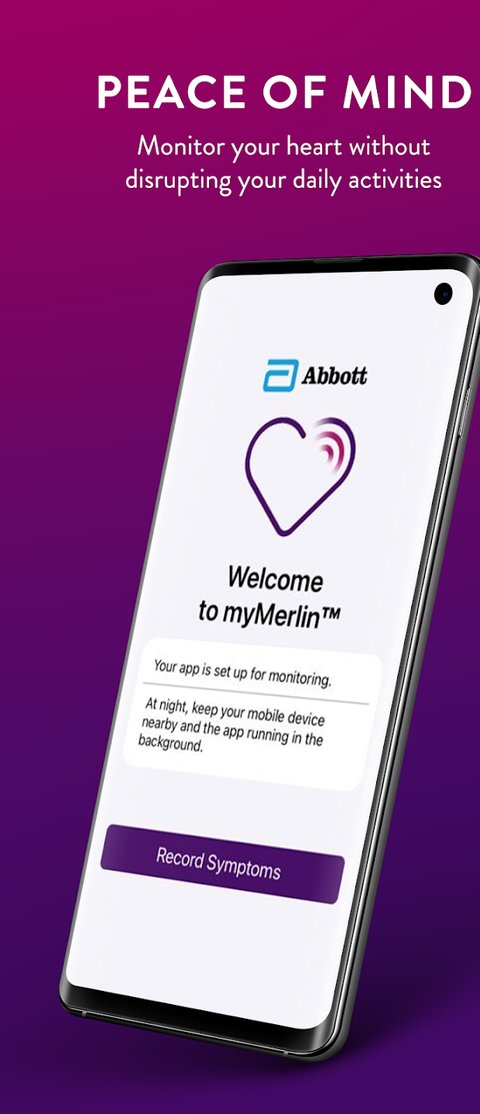
- Tap Record symptoms at the bottom of the home screen.
- Select the symptoms you’re experiencing — choose “other” if you aren’t experiencing any — then tap Done. The app starts connecting to your device and shows an estimated time to finish.
- Keep your phone or tablet nearby while it connects; this can take several minutes. You’ll get a notification once the recording is complete.
- Tap Done.
MyMerlin Pulse appFor Gallant devices
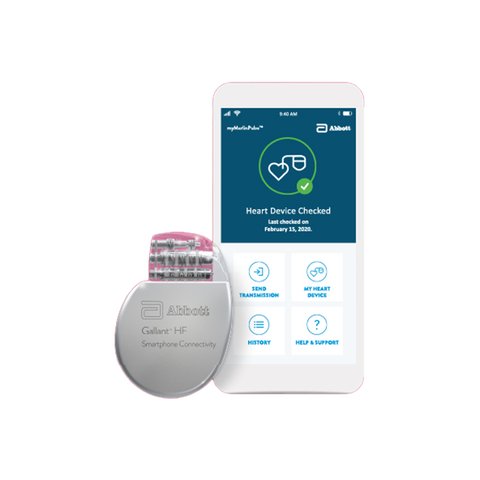
- Open the MyMerlin Pulse app and tap Send transmission.
- Wait for the “Data sent” confirmation screen.
MyLux appFor LUX-Dx insertable monitors

- Tap the menu icon in the upper-left corner of your app screen.
- Select Manual Transmission and follow the instructions on the screen.
- Place the magnet that came with your app on the back of your phone, then hold it over your device as instructed. You’ll feel a vibration — once you feel it, you’re free to remove the magnet.
- Give it a few minutes to connect. A message will confirm once it’s complete.
- Tap Done.
Latitude monitorModels 6280 / 6290
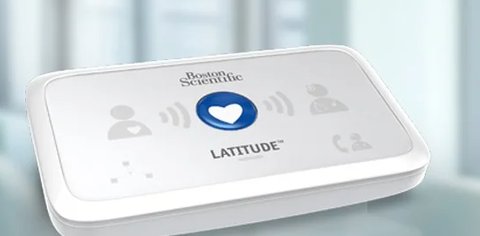
- Confirm the green light under the word “Latitude” is on before you start.
- Press and release the blue heart button in the center of the monitor.
- The blue “patient with heart” icon lights up on the left side when you’re facing the monitor.
- Three green waves blink toward the heart — this means the monitor is reading your implant. Stay within arm’s length of the monitor while this happens.
- Once the monitor finishes reading your device, three green waves blink on the right side of the heart.
- Your transmission is successful when the blue doctor icon lights up on the right side.
MyCareLink Heart mobile app
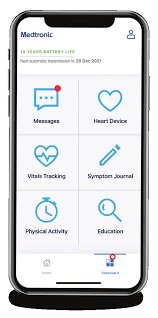
- Find and open the MyCareLink Heart app on your phone.
- Navigate to your dashboard, then open Messages.
- In the upper-right corner, tap Send transmission. If you’re asked whether your doctor knows you’re sending a transmission, select Yes.
- When the next popup appears, select Got it.
- A blue bar moves back and forth at the top of the app — this means your report is sending.
- Once the blue bar disappears, the app will briefly show Data sent.
- Your updated transmission will appear in Messages shortly, but you don’t need to wait for it — you’re all set, and you can close the app.
MyCareLink Relay
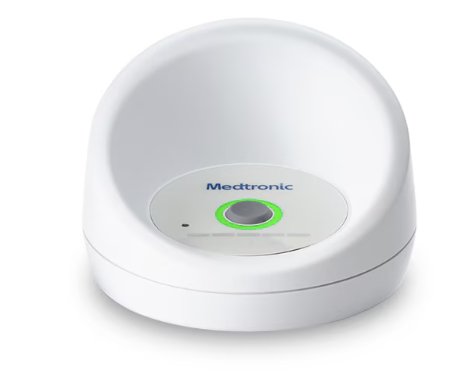
- Press and hold the button on top for 2 seconds. The light ring starts to spin and the progress bar begins filling.
- Stay near the communicator until the progress bar fills completely — this can take up to 6 minutes. A tone plays once it’s done.
- When the light ring turns solid green with no further movement, you’re finished — no further action is needed.
MyCareLink Smart™ monitorHandheld reader and app
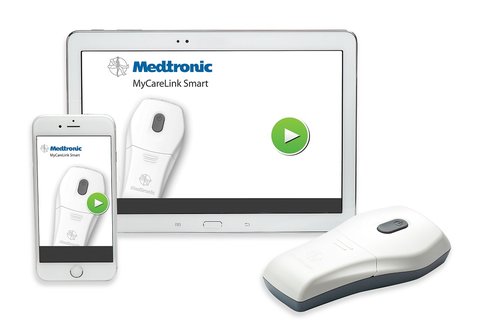
- Open the MyCareLink Smart app on your phone or tablet.
- Turn on the reader by pressing the gray button on top.
- Press the green play button when the app opens — this starts the process.
- Place the reader over your heart device. While you hold it in place, a green light appears on the reader and a green progress bar appears in the app. If the green light doesn’t appear, gently move the reader until it does.
- When the reading is complete, the app will prompt you to put the reader down.
- The reader shows a green checkmark with “Data sent” once your transmission goes through successfully.
- Tap the green home icon to return to the home screen, where your last transmission date appears. You can close the app on your phone or tablet — the reader will power off on its own, or you can remove its batteries if you’d like.
MyCareLink monitorModels 24950 / 24952
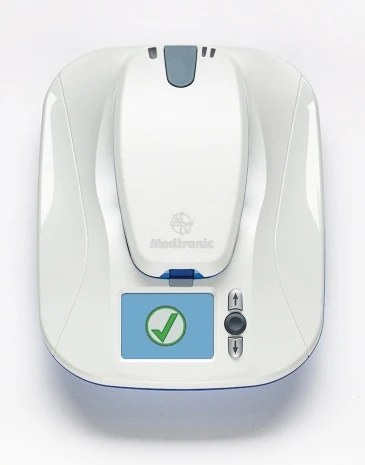
- Press the round button on the front of the base unit.
- Pick up the handheld reader from its cradle and hold it against your implanted heart device. A green light appears when it finds your device — if it doesn’t, gently move the reader until the light comes on.
- A green progress bar appears on the cradle’s screen while it reads your device.
- When the screen tells you to, remove the handheld reader and set it back in the cradle.
- A second green progress bar shows your transmission being sent to your clinic.
- A green checkmark appears when everything’s complete. You’re free to leave the monitor — it will return to its main screen on its own.
MyCareLink monitorModel 26900
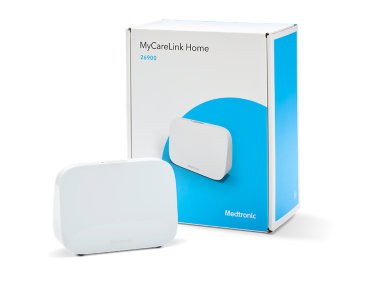
- Press and hold the button for 2 seconds to start a transmission.
- A tone plays and the green light ring on the front starts to spin.
- Wait until all five progress bars fill in completely — this may take a few minutes.
- A checkmark appears and a tone plays once your data is collected.
- After about 15 seconds, the checkmark disappears — no further action is needed.
MyCareLink monitorModel 26950
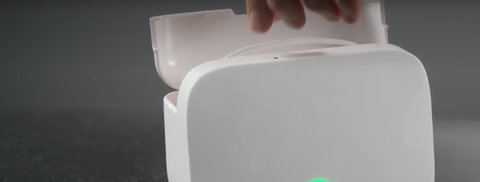
- Open the communicator lid to access the reader.
- Hold the reader over your implanted device and keep it in place for the rest of these steps.
- Press and hold the button on top of the monitor for 2 seconds to start the transmission.
- A tone plays and the light ring starts to spin.
- Wait until all five progress bars fill in completely — this may take a few minutes.
- A checkmark appears and a tone plays once your data is collected.
- After about 15 seconds, the checkmark disappears — no further action is needed.
Still need a hand?
If you’re stuck on a step, don’t see the light or icon you’re expecting, or just want to double-check everything went through, we’re happy to help.
These instructions are provided by Vector Remote Care as a general guide for the monitors and apps we support. Always follow any specific instructions your care team has given you, and contact us if a step doesn’t match what you’re seeing on your device.